Published:
Last edited:
What is Wireshark?
Wireshark is a network traffic analyzer. It lets you dive into the data flowing through a network via packet capture giving you a real-time view of what’s happening. With it, you can examine individual packets of data, see where they’re coming from and where they’re going, and even identify potential issues or security threats. It’s essentially a diagnostic tool.
Let’s take a look

Here is what Wireshark looks like when running. In the main field, each packet is listed with important information in each column such as time, source, destination, protocol, length, and info.
Note: This is not the default layout. I customized it for the purposes of this article.
On the bottom, you will see the packet details pane. This area provides a more comprehensive view of a selected packet’s attributes and is essential for in-depth analysis of network traffic.
On the bottom right is the ‘packet bytes pane’ or ‘hex dump pane.’ This pane enables users to examine the raw bytes of the packet, displaying both the hexadecimal and ASCII representations side by side. However, as this topic extends beyond the scope of this article, I won’t delve further into its details.
Let’s explore some protocols
What is UDP?
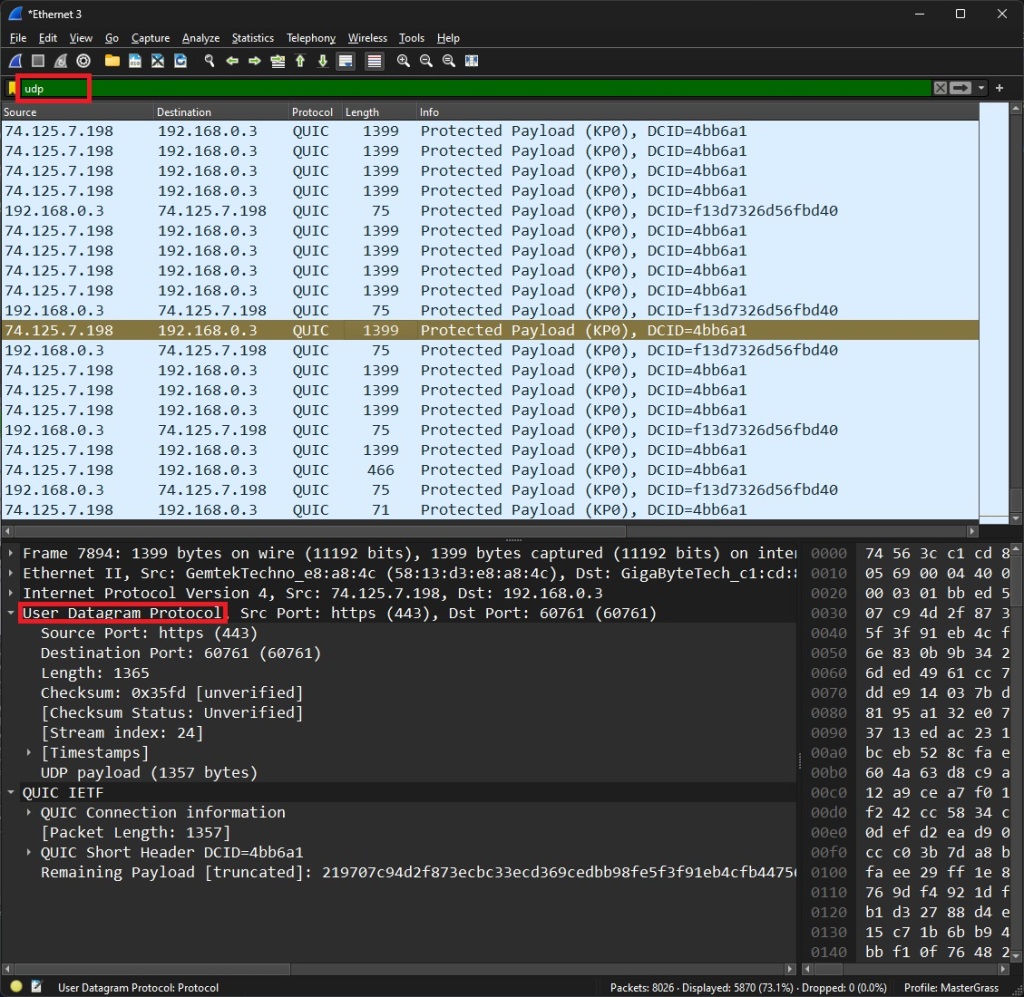
Here you can see where I typed in ‘udp’. But you might be asking Why do we only see QUIC?
QUIC (Quick UDP Internet Connections) is a Google-designed transport protocol that enhances web application performance by reducing latency and reinforces security. It’s built on UDP and is used for encrypted communication in web browsing.
UDP stands for User Datagram Protocol. It’s one of the core protocols in the Internet Protocol (IP) suite, along with TCP (Transmission Control Protocol). UDP provides a connectionless communication service between hosts on an IP network.
Here’s a straightforward breakdown:
Connectionless: UDP doesn’t establish a connection before sending data. It sends packets without establishing a connection or verifying if the receiver is ready.
Unreliable: UDP doesn’t guarantee delivery or order of packets. Once sent, packets may arrive out of order, duplicate, or not at all. There’s no built-in mechanism for error detection or recovery.
Lightweight: UDP has minimal overhead compared to TCP, making it faster and more efficient for certain types of applications. It’s commonly used for real-time communication, such as streaming media, online gaming, DNS (Domain Name System) queries, and other applications where speed is crucial and some packet loss is acceptable.
It’s used in scenarios where speed and efficiency are prioritized over reliability, and where applications can handle occasional packet loss or out-of-order delivery. It’s commonly employed for tasks like video streaming and voice chat, think Twitch.tv and voice chat apps such as Teams or Discord.
What is TCP?
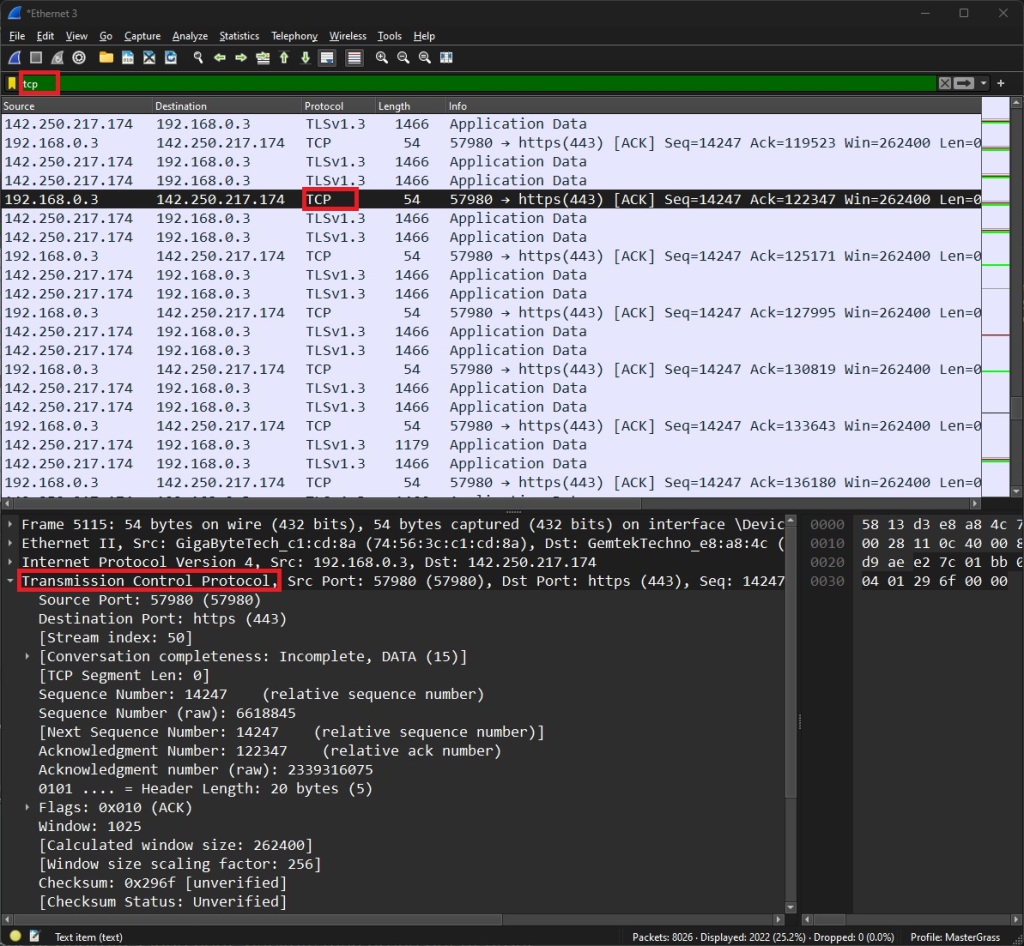
When I filter for ‘tcp’ in Wireshark, you may notice TLSv1.2 packets appearing. But why is that?
Wireshark displays TCP packets that transport TLS-encrypted data. This encryption obscures the application-layer data (e.g., HTTP requests/responses), rendering direct inspection impossible.
TCP, or Transmission Control Protocol, is a cornerstone of the Internet Protocol (IP) suite, along with UDP (User Datagram Protocol). Unlike UDP, TCP offers a connection-oriented communication service between hosts on an IP network.
Here’s a straightforward breakdown:
Connection-oriented: TCP establishes a connection before transmitting data. This ensures reliable, ordered delivery of packets.
Reliable: TCP guarantees delivery of data and ensures packets arrive in the correct order. It includes error detection and recovery mechanisms to address packet loss or corruption.
Heavier overhead: TCP has more overhead compared to UDP, which can slightly slow down transmission. However, this overhead enables the reliable delivery of data.
TCP is commonly used for applications where reliability is critical, such as web browsing, email, and file transfers. Its connection-oriented nature and error-handling mechanisms make it suitable for scenarios where data integrity is paramount.
What is ARP?
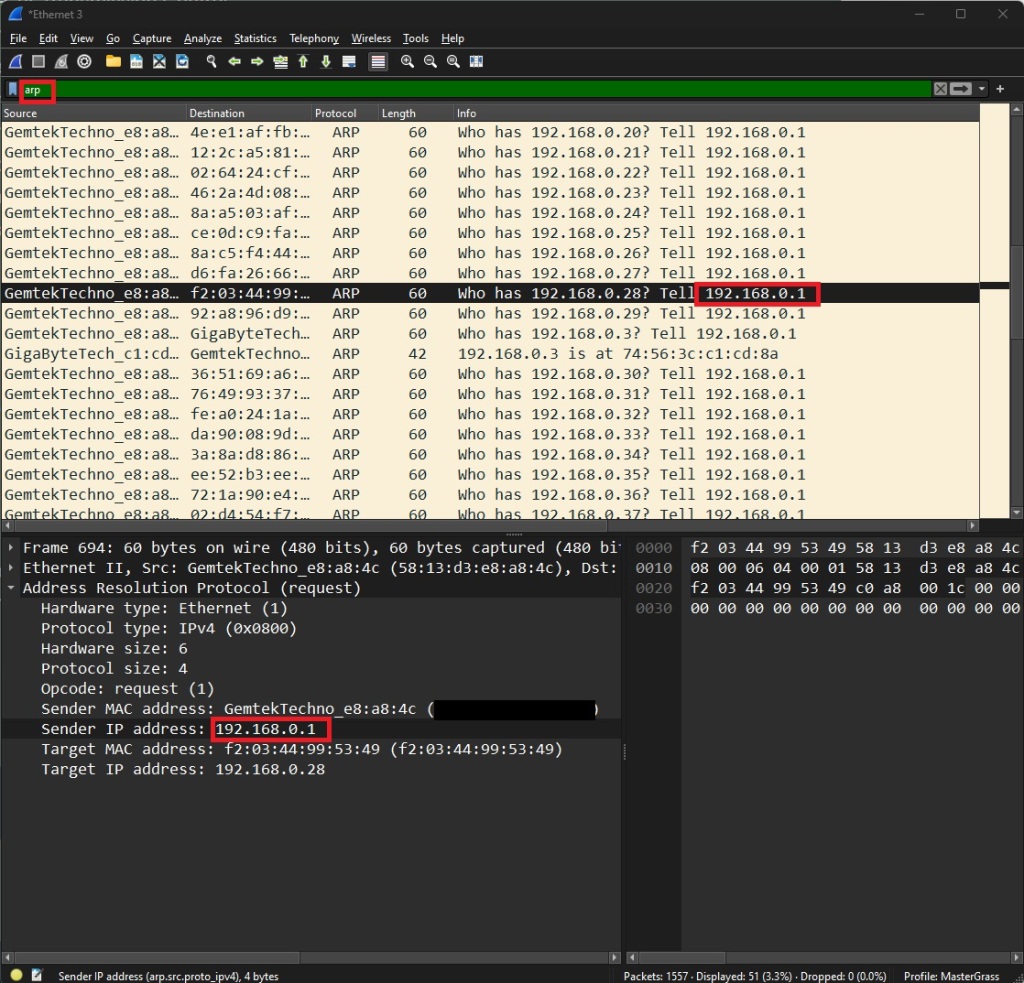
“ARP” stands for Address Resolution Protocol. It’s used to map IP addresses to MAC addresses on a local network.
When a device wants to communicate with another device on the same network, it first needs to determine the MAC (destination column) address corresponding to the IP address of the destination device. ARP is the protocol used for this purpose.
In the Image I have filtered for “arm”. You will notice that my router (192.168.0.1) is asking who is assigned to what IP. And also asking to tell 192.168.0.1 (Itself).
You can also see other information like who is being asked.
Once a device receives an ARP reply, it stores the IP-to-MAC mapping in its ARP cache. This cache helps reduce network traffic by allowing devices to quickly look up MAC addresses without needing to send ARP requests for every communication. Think of ARP cache like a directory for devices on the network.
 KevinOfBonita