Published:
Last edited:
What Is A Honeypot?
Simply put: A honeypot is a decoy system or network. It can be used to lure attackers away from legitimate targets or to collect data about attack methods.
For this project, I created an Azure (A cloud computing platform) account and utilized key tools including an SIEM (Security Information and Event Manager), a virtual machine, event logs, and the Log Analytics Workspace. Using Azure Sentinel, Microsoft’s SIEM tool, I monitored and logged cyber attacks. I customized a PowerShell script to extract metadata from Windows Event Viewer and incorporate geolocation data. Azure Log Analytics Workspace facilitated the ingestion of security logs. Through configured Azure Sentinel workbooks, I visualized global attack trends, providing insights via a world map.
Getting Started
Note: Referenced GitHub repositories are listed at the bottom.
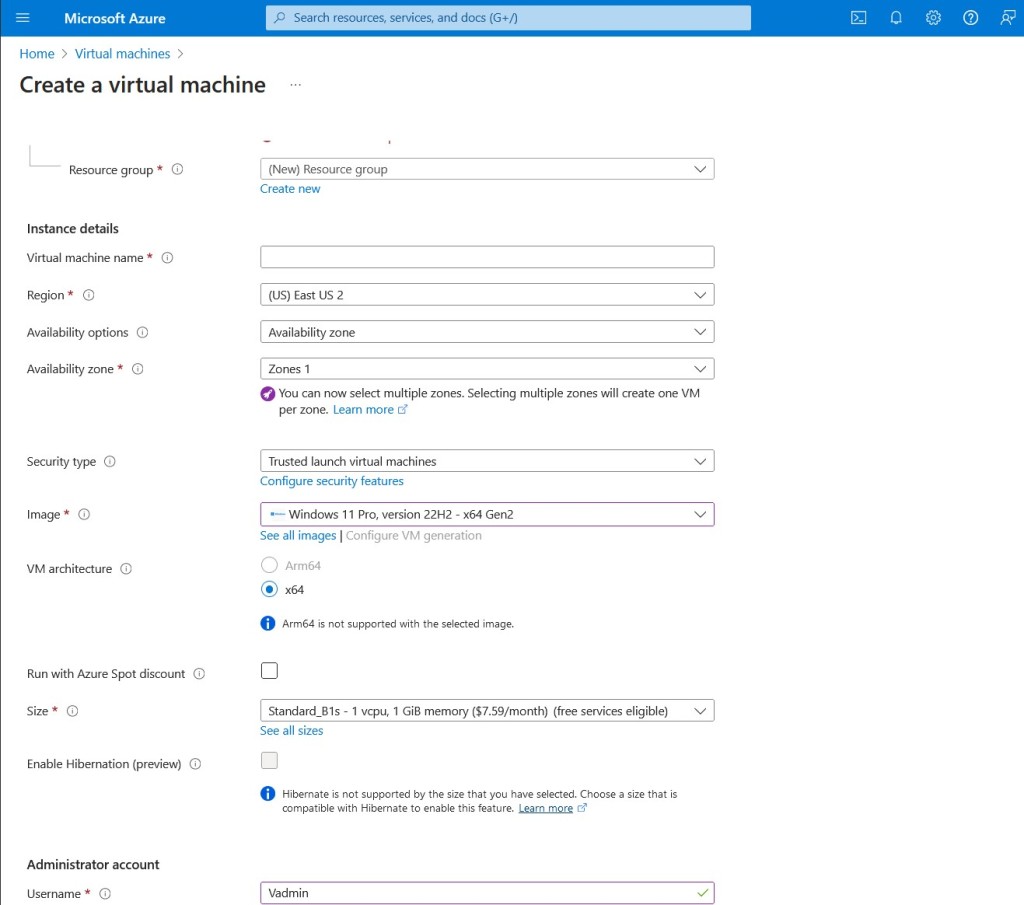
To begin, I registered a new Azure account and set up a new virtual machine (VM), specifying the location as the US and using Windows 11 Pro as the image. I created admin credentials (Username: Vadmin) and established a resource group named ‘HPVM_group’.
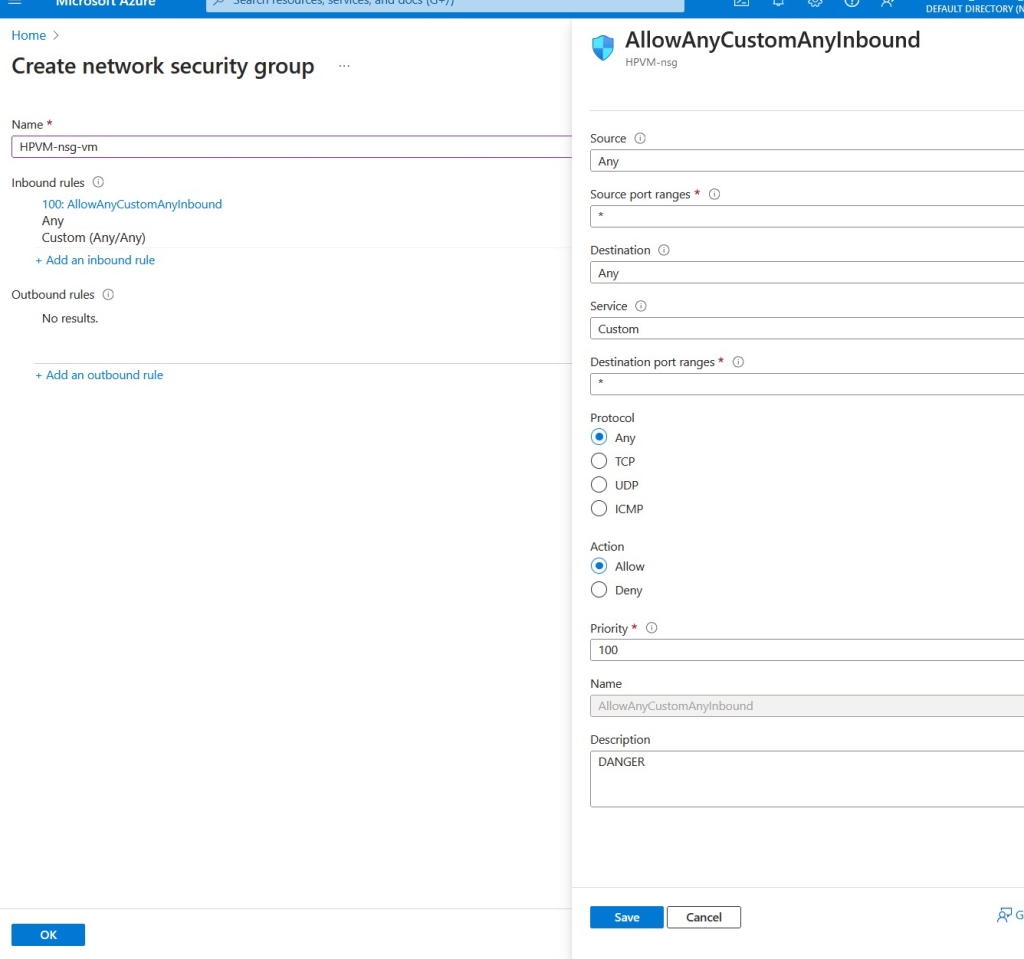
During the network security setup, I created a rule under ‘Create network security group’ to open all ports for any protocol—a necessary step for a honeypot, but not recommended for standard configurations.
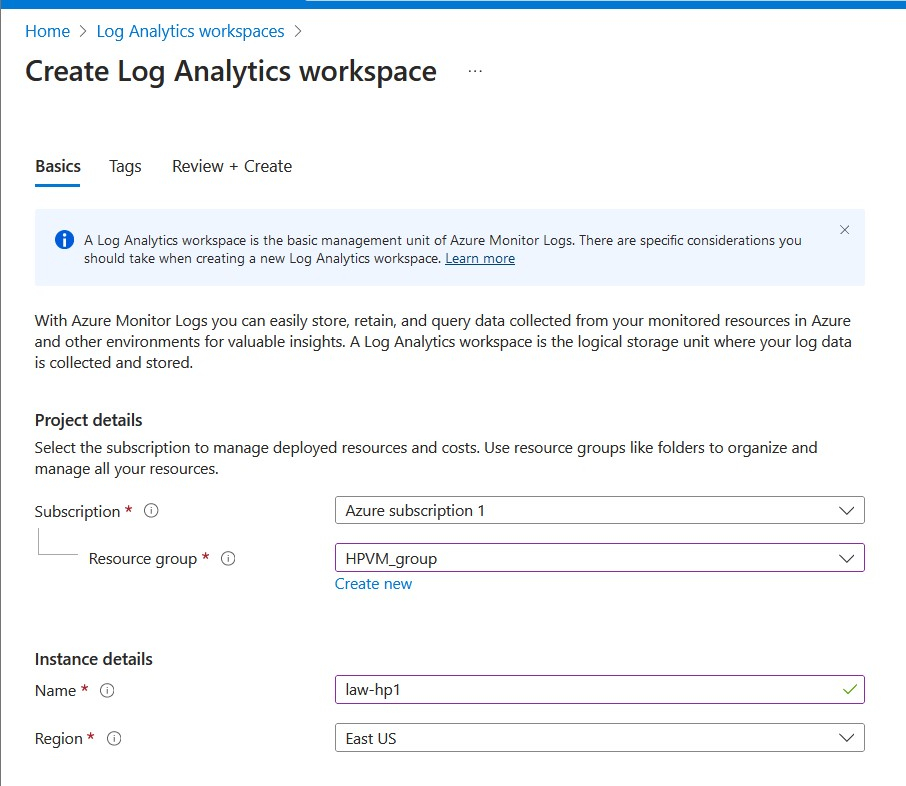
Next, I created a Log Analytics Workspace (LAW), which serves as a central repository for log data. I named it ‘law-hp1’.
I disabled foundational CPSM (Foundational Cloud Protection & Security Management) and SQL servers under Microsoft Defender for Cloud Environment settings, ensuring comprehensive data collection.
Note: CPSM refers to features within Microsoft Defender for Cloud that encompass threat protection, vulnerability management, security posture management, and regulatory compliance assessments. —and something I will not need for the purposes of collecting attack data.
After the VM was initialized and started, I established a connection between it and my LAW to enable data integration.
Getting Connected & Configuring The Firewall
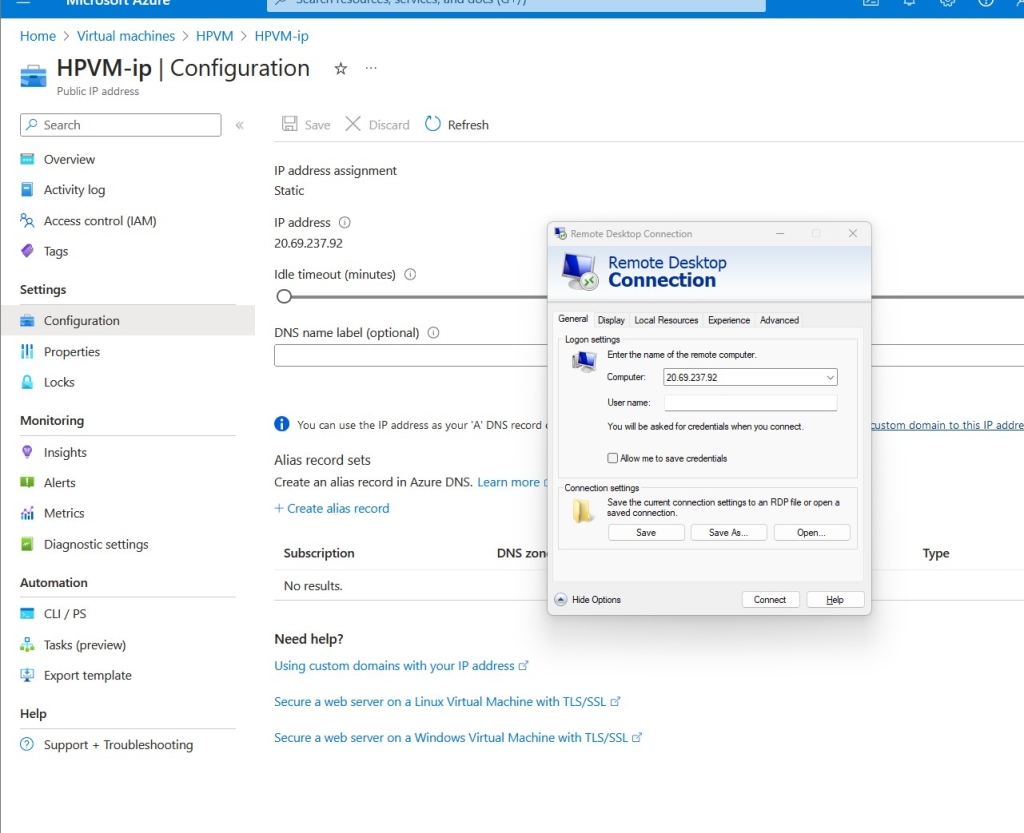
Next, I connected to my VM using an RDP. All I had to do was set it to the IP (20.69.237.92) and then hit connect and provide the credentials.
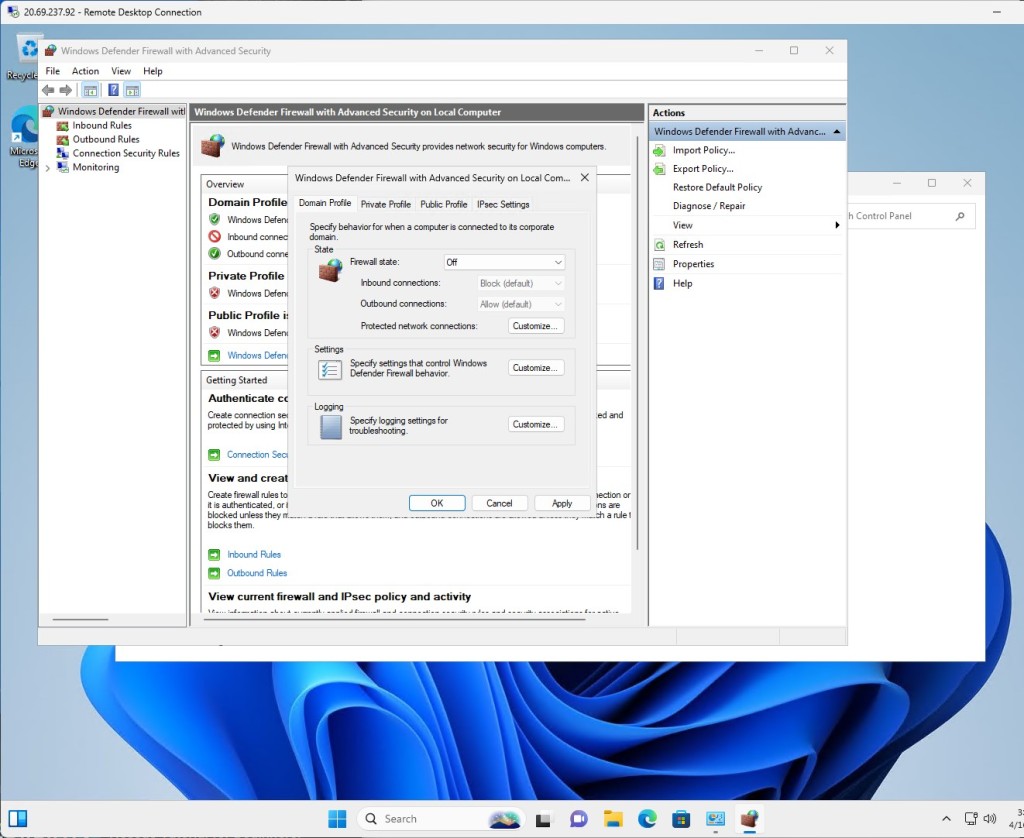
After I was connected, I disabled the Windows firewall to increase its discoverability. This meant going into each profile (Domain, Private, Public) and turning off the firewall.
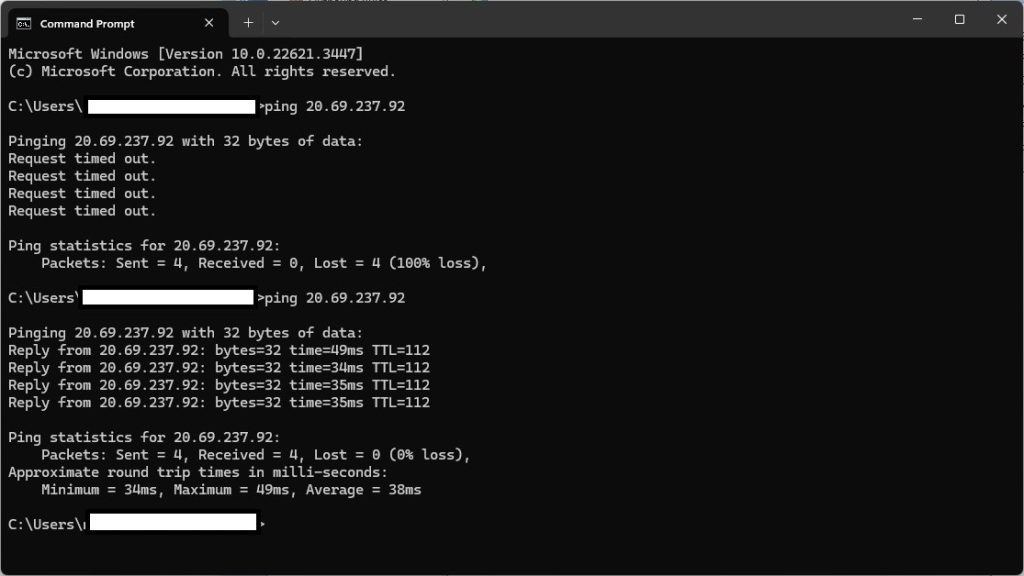
This means that ping (ICMP) requests were now allowed, enabling successful pinging of the machine. Here you can see I tried before disabling the firewall and after.
Setting up the security and logs
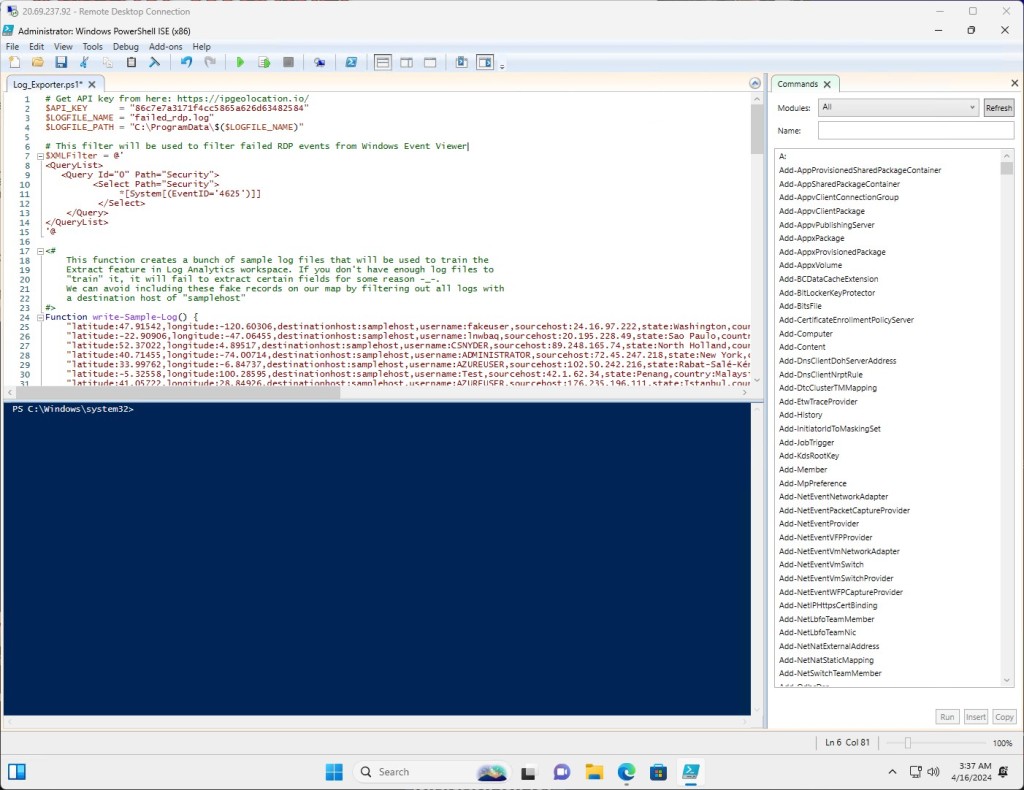
After turning off the firewall, I got a PowerShell script from Josh Madakor’s GitHub; the script exports failed RDP logs and geo-data. I used the API from app.ipgeolocation.io to get geo-data from the IP addresses trying to log into the VM, and saved the info to a file called ‘failed_rdp’. Then I had the script run non-stop to continuously export the logs.
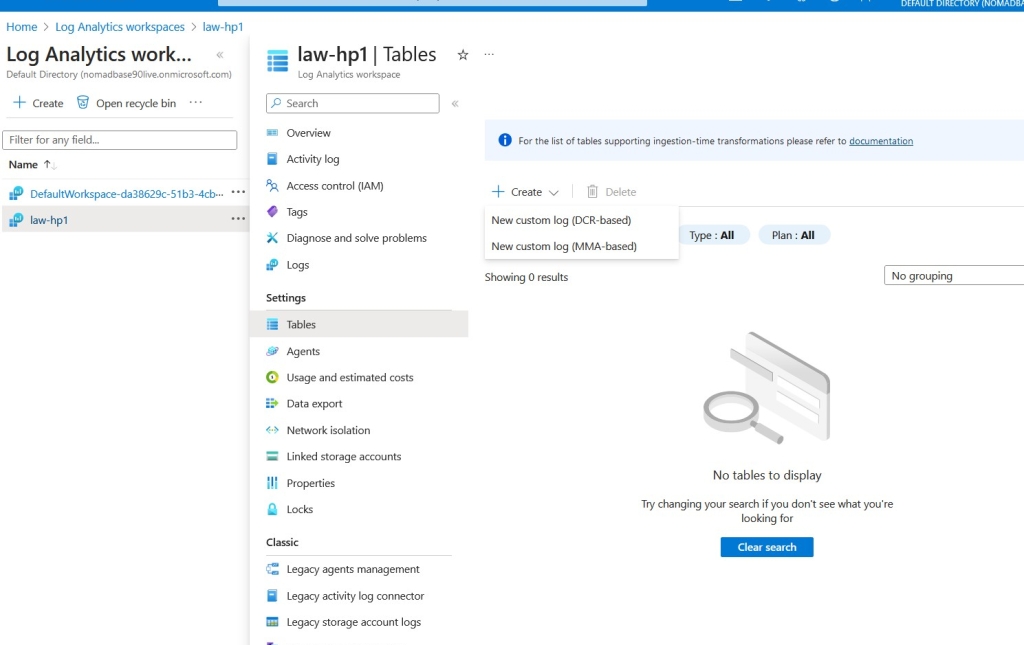
I then uploaded the failed_rdp log from the VM to the LAW as a custom log under the Tables section, setting the collection path to the VM’s file destination (C:\ProgramData\failed_rdp.log).
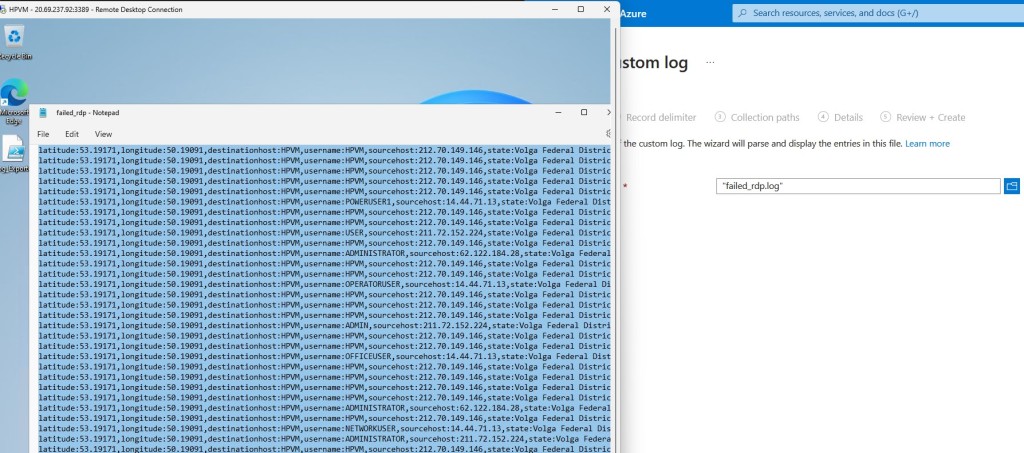
Here is the log before being exported. This is the result of the script with the API. You can see username and coordinates.
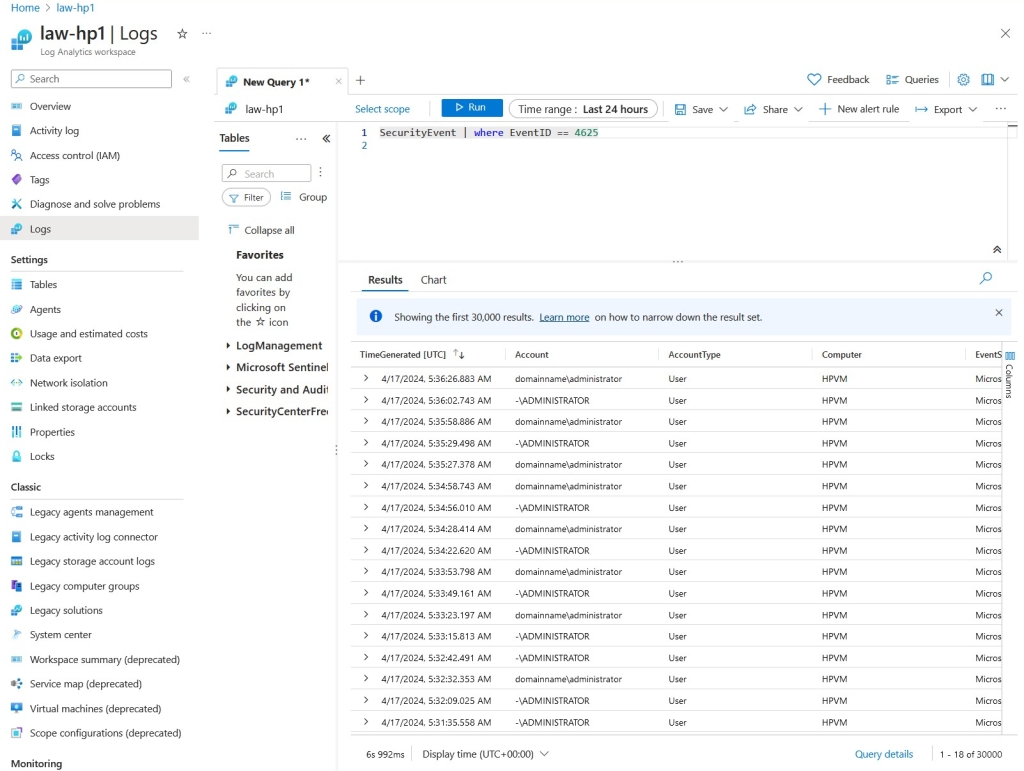
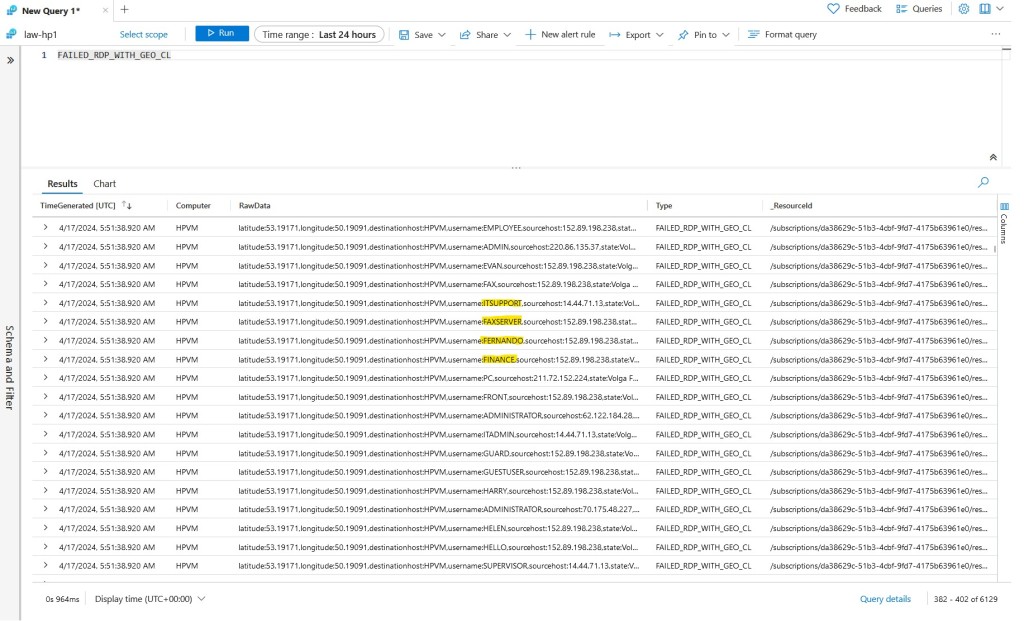
After letting it do synchronization, I could run the log from the Log Analytics Workspace. Here you can see the data a little better. Displayed are the times and the account names used to attempt to connect to my VM.
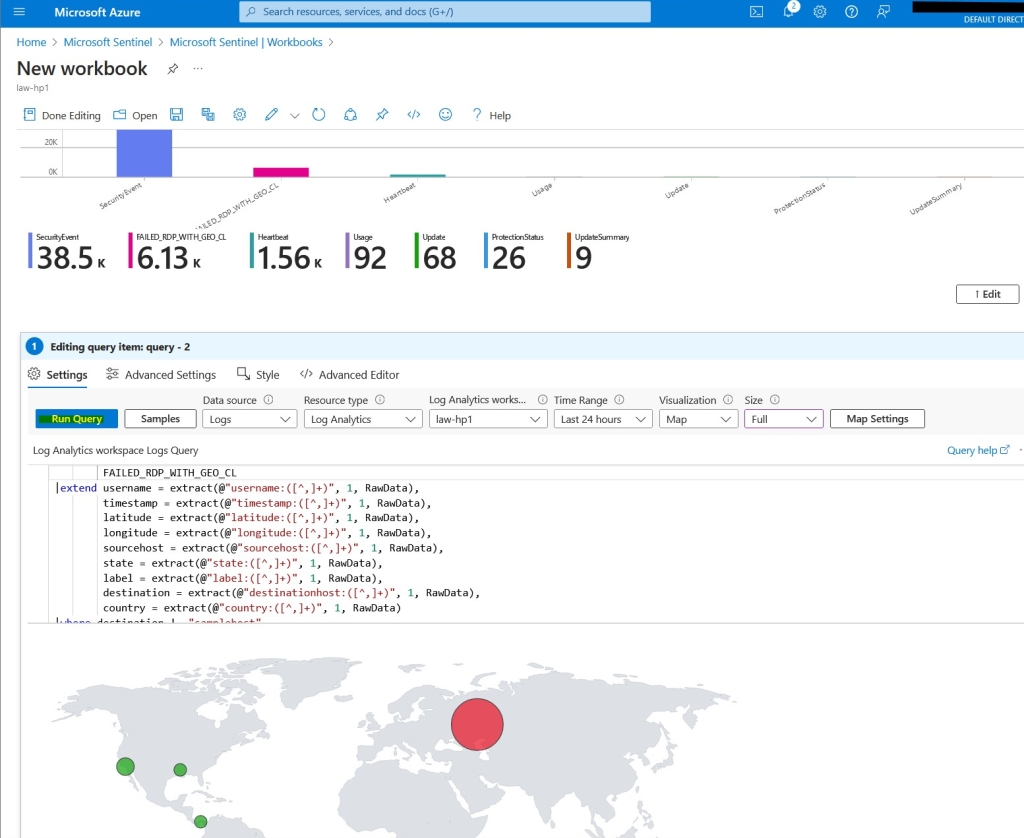
Next, I created a new workbook in Sentinel (The Azure SIEM), using a custom query to pull the failed RDP logs (Credit to aldot311 on GitHub).
Analysis (The Fun Stuff)
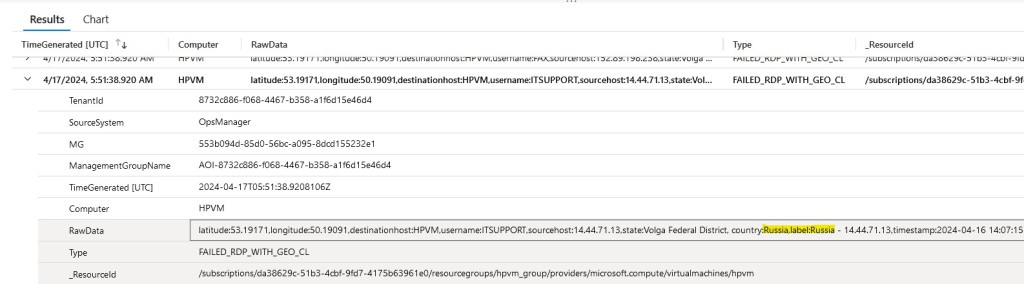
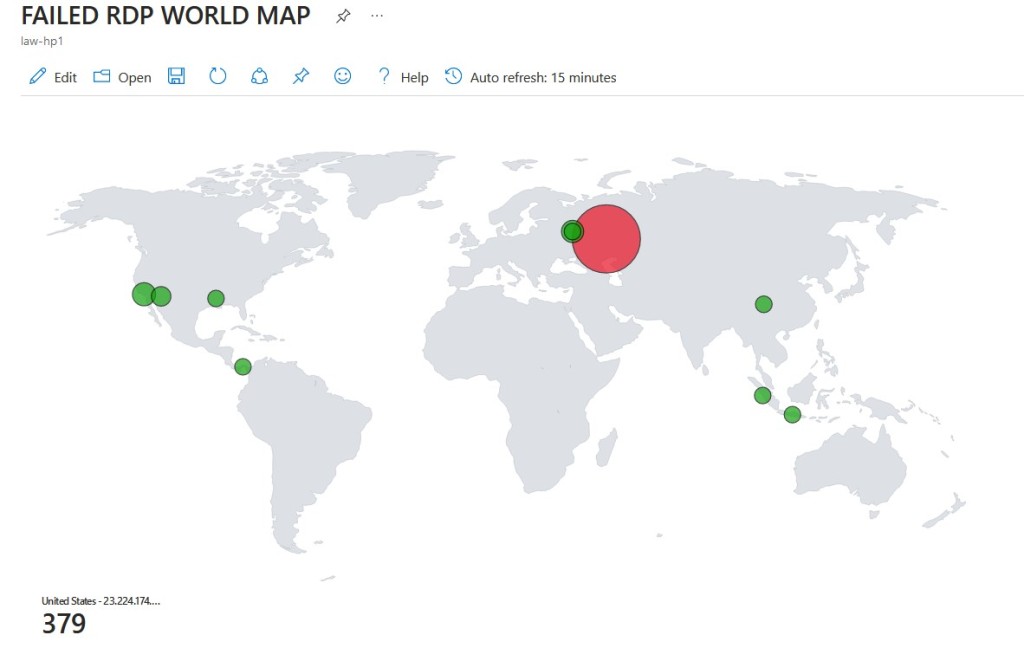
Analyzing the data, I observed a significant number of RDP attack attempts originating from Russia—a finding consistent with prevailing geopolitical tensions.
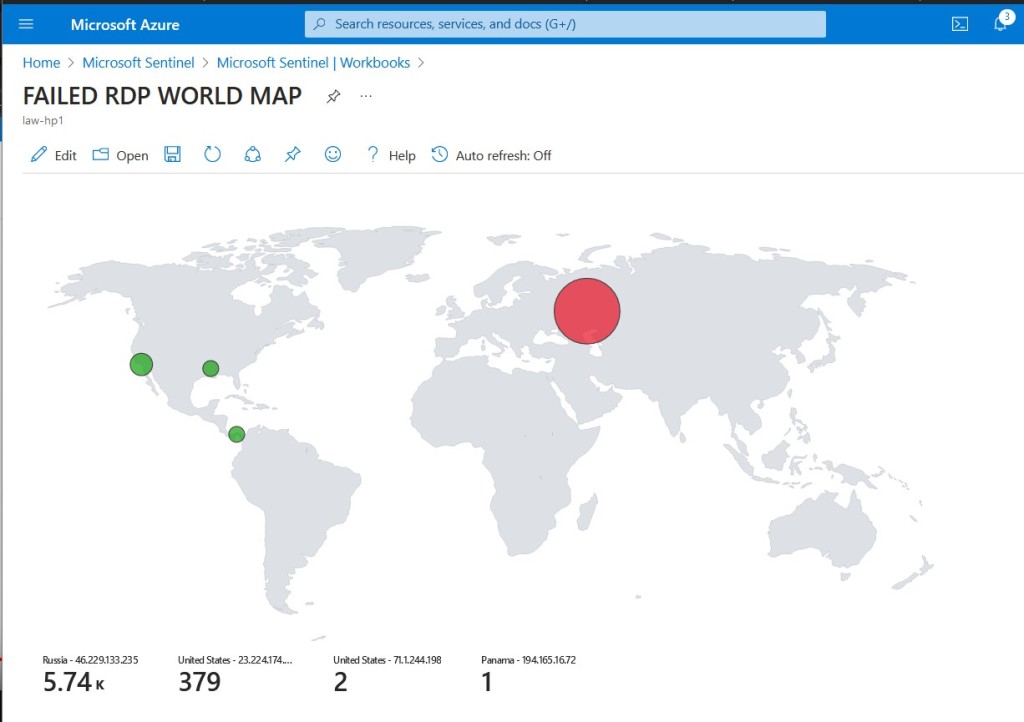
In the query results, various usernames attempted for each attack were highlighted, with the country of origin, Russia, prominently displayed.
Subsequent observations revealed additional failed RDP attempts from other locations, indicating ongoing security threats (see picture).
Here is the map again the next day. As you can see, we had parts of Asia hopped in as well.
This project provided a hands-on exploration of cybersecurity tools and techniques, showcasing the practical application of Azure Sentinel and honeypot deployment. It was exciting to observe the various techniques used to attempt brute-force connections to my virtual machine, with Russia being the primary source of these attacks, albeit unsurprisingly. From the patterns observed, it’s plausible that these attacks are automated, possibly executed by bots equipped with pre-configured attack methods.
This underscores the criticality of port security, alongside the implementation of robust password policies and multi-factor authentication (MFA). The presence of an open port on the internet, as demonstrated by this VM, significantly increases the likelihood of exploitation attempts aimed at gaining unauthorized access to systems.
Sources
Josh Madakor’s Video Tutorial:
Title: SIEM Tutorial for Beginners | Azure Sentinel Tutorial MAP with LIVE CYBER ATTACKS!
Source: YouTube
Link: https://www.youtube.com/watch?v=RoZeVbbZ0o0
Exporter Script by Josh Madakor:
Source: GitHub
Link: https://github.com/joshmadakor1/Sentinel-Lab/blob/main/Custom_Security_Log_Exporter.ps1
Querylog for Map by aldot311:
Source: GitHub
Link: https://github.com/aldot311/Azure-Sentinel-Lab/blob/main/Query%20log
Aldo’s Video Tutorial:
Title: Azure Sentinel Deep Dive: Catch & Visualize Cyber Threats in Real-Time
Source: YouTube
Link: https://www.youtube.com/watch?v=jjHJzvMEZps
GEO IP Website:
Source: IPGeolocation
Link: https://app.ipgeolocation.io/dashboard
 KevinOfBonita